


Drawing Apps: Draw, Sketch Pad
4.1494.00 Reviews
App Specs
- Version
- 1.9.4
- Updated On
- License
- Free
- Downloads
- 10,000,000+
- Developer
- Photo Editor Apps Maker Studio
- Categories
- Art & Design
- Platform
- Android, iOS
Screenshots
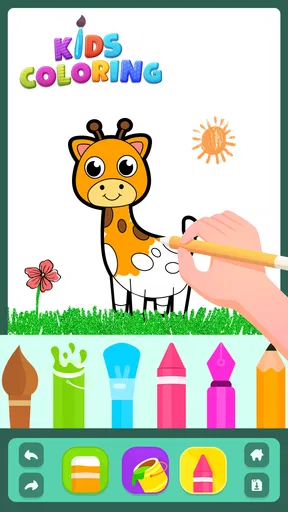
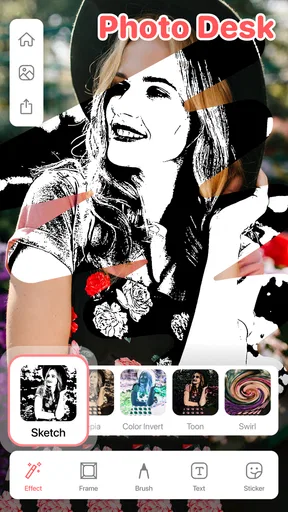
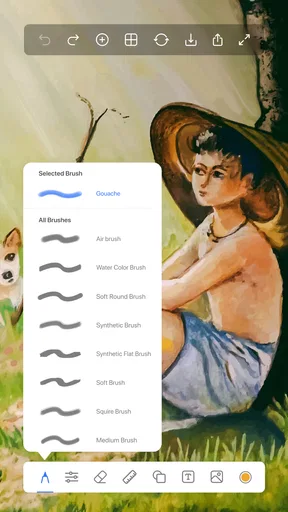
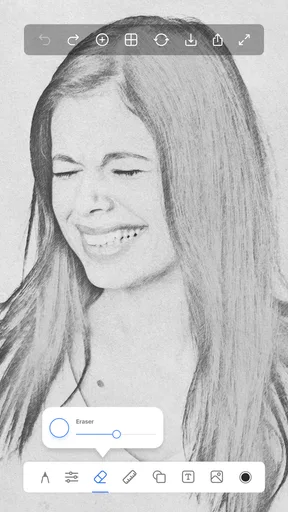
 Analysis by AppCompare
I like to think of a drawing app less as a replacement for paper and more as a place to catch an idea before it slips away. That is where Draw, Sketch Pad makes sense: it offers a low-pressure space for doodling, sketching, coloring, and trying out marks without setting up paints or finding a clean sheet. I would reach for it when I have a few spare minutes, want to rough out a simple design, or need a relaxing activity that does not demand a finished result.
Its appeal is deliberately broad. A child can use a digital canvas for playful coloring, while an adult might use the same basic idea to test a composition or unwind with a sketch. The important distinction is that an approachable tool is not automatically a professional art workstation. I see this app as most useful when convenience and experimentation matter more than a highly controlled production workflow.
Where it fits in a drawing routine
A realistic use is sketching an idea while waiting for an appointment: make a few rough shapes, try a different arrangement, and save the version that feels right. The undo and redo controls make that kind of casual exploration less precious. Rather than treating every stroke as permanent, I can test a line, reverse it, and move on. That simple freedom is useful for beginners who are still learning how pressure, color, and shape work together.
It can also serve as a shared activity at home. A parent can hand over a device for a short drawing session, or an adult can use the app to make a quick visual note instead of describing an idea in a message. I would still save important work deliberately and check the result before sharing it; a quick doodle and a polished illustration have different needs.
Choosing it over paper or a more advanced editor
Compared with a notebook, a digital canvas is easier to revise and does not require carrying pencils, erasers, or coloring tools. That convenience is a real advantage for spontaneous practice. Paper may still feel better if you rely on the resistance of a pencil, want to work without a screen, or need a drawing surface that is always ready without opening an app.
Against more advanced illustration apps, the trade-off goes the other way. A specialist tool is usually a better fit for intricate projects that depend on a carefully managed production process, precise controls, or a broader set of professional options. I would not choose this app simply because it has layers and adjustable brushes; those features are helpful, but they do not by themselves make a casual sketching app a complete studio. For quick ideas, coloring, and practice, however, a lighter tool can be less intimidating and faster to pick up.
A small workflow that keeps experiments tidy
One useful habit is to put the parts of a sketch that may change on separate layers, if the drawing calls for it. For example, I would keep a loose layout apart from the stronger lines so I can revise the arrangement without rebuilding everything. Layers are most valuable when used with a purpose; adding them to every tiny doodle can create needless housekeeping instead of making the work easier.
Worth Reading Before You Choose

Flipboard Shows What News Apps Must Do Beyond the Feed

Switching to Android Auto Means Rethinking Your Driving Routine

Google Calendar Makes a Crowded Week Easier to Manage

Ludo King Makes the Most of the Minutes Between Plans

Baby Panda World Brings Quick Play to Modern Phones, but Its Game Library Feels Busy

ESPN’s Live Game View Makes Following Close Games Easier
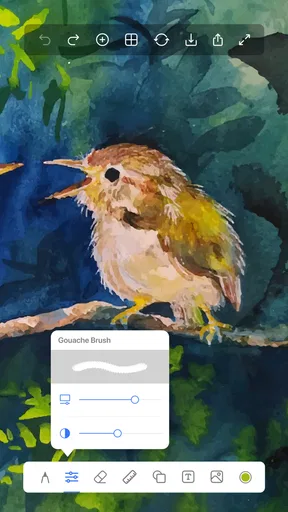
I would also begin with a few deliberate brush tests rather than adjusting settings in the middle of a finished drawing. Try a thin line, a broader mark, and a softer opacity on a blank area first. That gives you a feel for how the selected brush looks before it becomes part of the image. Saving a brush you like can then make a later session quicker, especially if you return to a recurring kind of sketch.
The app’s free entry point makes it easy to try, while in-app purchases range from $6.99 to $13.99 per item. I would explore the basic drawing experience before paying for anything: first decide whether the canvas, controls, and style of work suit you, then consider an extra only if it addresses a need you actually have. That is a more sensible approach than buying options in anticipation of a project you may not end up making.
Who should try it, and who may prefer something else
I would recommend giving it a try if you want a straightforward way to draw on a phone or tablet, are introducing a child to digital art, or need a casual sketchbook for spare moments. Its combination of adjustable brushes, color choices, layers, and undo and redo gives newcomers room to experiment without demanding that they learn a complicated interface first.
I would steer elsewhere if your work depends on a precise, repeatable professional process, or if the tactile feel of paper is central to how you draw. It may also be a poor match if you want every session to connect to a larger, carefully organized illustration workflow. A dedicated advanced editor or a traditional sketchbook will make more sense in those situations. The best choice depends less on how many tools an app appears to offer and more on whether its way of working fits the art you actually make.
When deciding whether it suits a child, I would look beyond the Everyone age rating and consider how the device is used at home. The rating makes the app broadly appropriate, but a parent should still set ordinary screen-time expectations and supervise sharing if a child is showing artwork to others. For an adult, the same point applies in a different way: treat social sharing as a choice, not as a necessary part of drawing.
Getting Started with Your Digital Canvas
First things first, downloading and setting up Draw, Sketch Pad is a breeze. Available for both Android and iOS, the app only takes up a small space on your device, but it offers a huge array of tools right off the bat. As soon as you open it, you’re greeted with a clean, intuitive interface that’s perfect for beginners and seasoned artists alike.
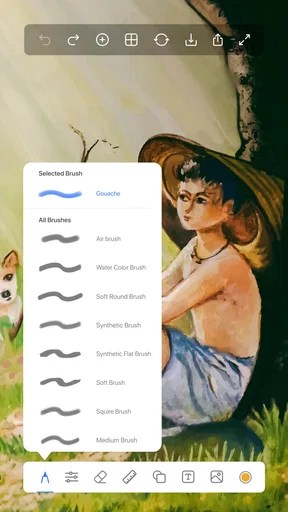
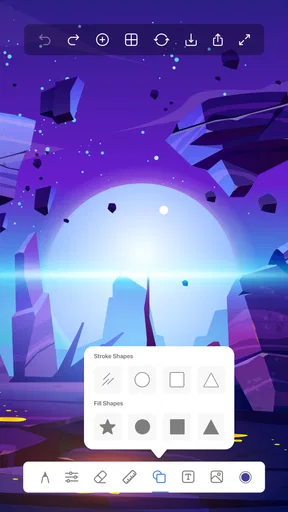
The app organizes its features in a straightforward manner, making it easy to dive right in without a steep learning curve. I was pleasantly surprised by the range of brushes available. Whether you’re into fine line work or bold strokes, there’s something for everyone. Plus, the color palette is as diverse as a rainbow after a summer rainstorm.
Features That Stand Out
One of my favorite features is the layering system. This allows you to work on different elements of your drawing without messing up the entire piece. Imagine editing a photo in layers – it’s a similar concept but for digital drawing. You can tweak, adjust, and perfect each part of your artwork independently.
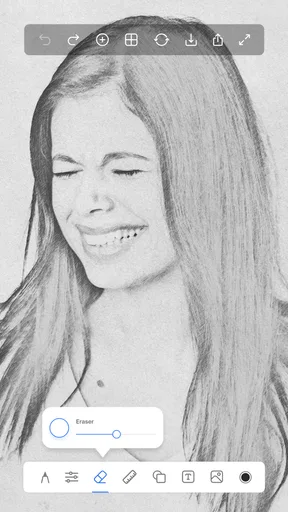
Moreover, the app includes a handy undo and redo function. Made a mistake? No worries! Just tap a button, and it’s like it never happened. This feature alone makes experimenting with new techniques less daunting.
Let’s not forget the customizability. You can adjust the brush opacity, size, and texture to suit your artistic style. And if you’re like me, you’ll appreciate the ability to save your favorite brushes for quick access later.
Sharing Your Creations with the World
Once you’ve created something you’re proud of, sharing it is as easy as pie. The app supports direct sharing to social media platforms, or you can save your artwork to your device’s gallery. I found this particularly useful for getting feedback from friends or even showcasing my work to a wider audience.
The app also features a gallery where you can view and get inspired by other users’ creations. It’s like a mini art community, and I loved browsing through what others have made. It’s a great source of inspiration and can even spark new ideas for your next project.
Why You’ll Love It
What I truly appreciate about Draw, Sketch Pad is its versatility. Whether you’re a hobbyist looking to doodle during your downtime or a professional artist seeking a convenient digital platform, this app has something to offer. Its simplicity doesn’t compromise functionality, making it a fantastic tool for all skill levels.
Another point worthy of mention is the app’s responsiveness. There’s no lag, even with multiple layers and complex designs. It’s smooth as butter, ensuring your creative flow isn’t interrupted.
How its current version shapes the experience
The app is currently at version 1.9.4, following its release on September 5, 2022. Those details establish a useful baseline for someone deciding whether to install it, but they do not tell me what changed between individual releases. I would not assume a particular tool or improvement arrived in a specific update. What matters in practice is whether the present version works comfortably on your device and supports the way you want to draw.
For existing users, a version number is most useful as a point of reference when checking compatibility or deciding whether to update. If you have a favorite brush or a layered drawing you care about, it is sensible to save important work before making any app change, as a general good habit with creative projects. I would also revisit the controls after an update rather than assuming every setting will feel exactly as it did before.
The app is made by Photo Editor Apps Maker Studio and is listed in the art and design space. Its audience is sizeable, with more than 10 million installs, while its average rating is 3.9 from around 13,000 ratings and 483 written reviews. I treat those figures as context, not a substitute for trying it: drawing preferences are personal, and a beginner looking for quick doodles may judge the same interface differently from an illustrator building finished work.
Practical questions before you commit
Does it cost money to begin? No: the app is free to install, with in-app purchases priced from $6.99 to $13.99 per item. That makes a trial straightforward, but I would check what an optional purchase includes before spending. The key question is whether it solves a real limitation in your own routine, not whether an extra sounds useful in theory.
Can it suit a complete beginner? I think so, particularly if the goal is to learn by drawing rather than to study a complex interface first. Start with one brush and a small color selection, then use undo to test marks without worrying about ruining the page. Add layers only when you can name what each one is for; that keeps the workspace understandable as the sketch grows.
Is it a good fit for serious finished artwork? It can be a convenient place to begin or to make a quick piece, but I would compare its available controls with the requirements of the project before relying on it as a main studio. If a client task depends on fine production control or a well-defined handoff process, an advanced illustration program may be the safer choice. For a personal sketch, a visual note, or casual coloring, that extra complexity may bring little benefit.
What I would watch for in regular use
Over time, I would pay attention to how comfortably the app handles the size and complexity of the drawings I actually make, rather than judging it from a quick test. I would also notice whether I can find saved brushes and separate layers easily once a project has more than a few parts. These are practical signs of fit: a feature is only helpful if it remains easy to use when you return to a piece later.
I would keep expectations grounded around sharing, too. Saving an image to the device or sending it to a social platform is handy for showing a result, but it is different from a complete portfolio workflow. If you need to organize many pieces, prepare them for professional delivery, or preserve a detailed series of revisions, a separate tool or process may be necessary. For occasional sharing with friends, the simpler route is often enough.
Final Thoughts
In conclusion, Draw, Sketch Pad is a delightful app for anyone interested in digital art. It combines ease of use with powerful features, making it a reliable companion for artists on the go. So, if you’re ready to unleash your creativity without the mess of traditional supplies, give it a shot. Who knows, you might just create your next masterpiece!
Pros
- Intuitive interface for easy navigation.
- Wide range of brushes and tools.
- Supports high-resolution exports.
- Layer management for complex designs.
- Customizable color palettes.
Cons
- Ads can interrupt creative flow.
- Limited free version features.
- Occasional lag on older devices.
- No offline mode available.
- Subscription model can be pricey.
FAQs for Drawing Apps: Draw, Sketch Pad
What features does the Drawing App: Draw, Sketch Pad offer?
The Drawing App: Draw, Sketch Pad is packed with features designed for both beginners and professionals. It includes a variety of brushes, layers, blending modes, and customizable color palettes. Additionally, it supports pressure sensitivity for stylus use, offering a real-life drawing experience. Users can also import images for tracing or inspiration.
Is the Drawing App suitable for professional artists?
Yes, the Drawing App is suitable for both hobbyists and professional artists. Its advanced tools such as multiple layers, high-resolution canvas options, and export formats cater to professional needs. The app's interface is intuitive, making it easy for professionals to integrate it into their creative workflow.
Does the app work offline?
Yes, the Drawing App: Draw, Sketch Pad can be used offline. All main features are available without an internet connection, allowing users to sketch and draw wherever they are. However, online access might be needed for cloud storage, updates, or downloading additional content like brushes.
What are the system requirements for the app?
The app is compatible with most modern Android and iOS devices. It requires a minimum of Android 6.0 or iOS 11.0 to run smoothly. For optimal performance, a device with at least 2GB of RAM and a multi-core processor is recommended, especially when handling high-resolution projects.
Are there any in-app purchases or subscriptions?
The Drawing App offers a free version with basic features, but to unlock advanced tools, users can opt for in-app purchases or a subscription model. This includes premium brushes, additional layers, and cloud storage options. There are often bundle deals for those who want to access multiple features at a reduced price.


